No products in the cart.
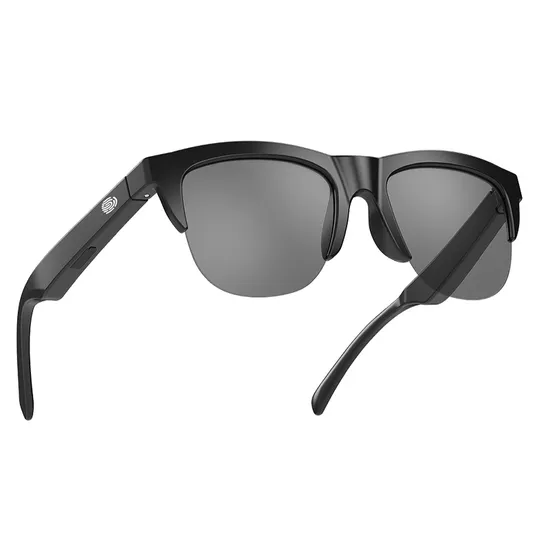

Universal pairing instructions, the factory reset procedure and fixes for any sync problem.
Every pair of smart glasses AIWOX (the Audio series AX01–AX12, the Translate series AX13–AX15 or the Video series AX17) is designed for hassle-free Plug & Play with any modern smartphone (iPhone, Samsung, Xiaomi, Huawei, Google Pixel) or computer.
AIWOX AX01, EarDance or Smart Glasses).Solution (Factory Reset Procedure): Open both temples. Press and hold the touch sensor on both temples at the same time for 8–10 seconds until the lights flash red-blue quickly. Release the sensors and place the glasses on a flat surface for 5 seconds. The two temples will re-sync automatically.
Solution: Most often the glasses have reconnected to another nearby device (laptop, tablet or a family member’s phone). Turn off Bluetooth on that device for a moment, close and reopen the temples, then search again on your phone.
Solution: On some Android phones, Bluetooth headphone volume is separate from phone volume. Go to Settings → Bluetooth → Advanced settings and turn on “Media volume sync” (Absolute Volume).
Explore the full AIWOX glasses collection →
Preț oficial: 1.769 MDL • Garanție 24 luni • Showroom Chișinău
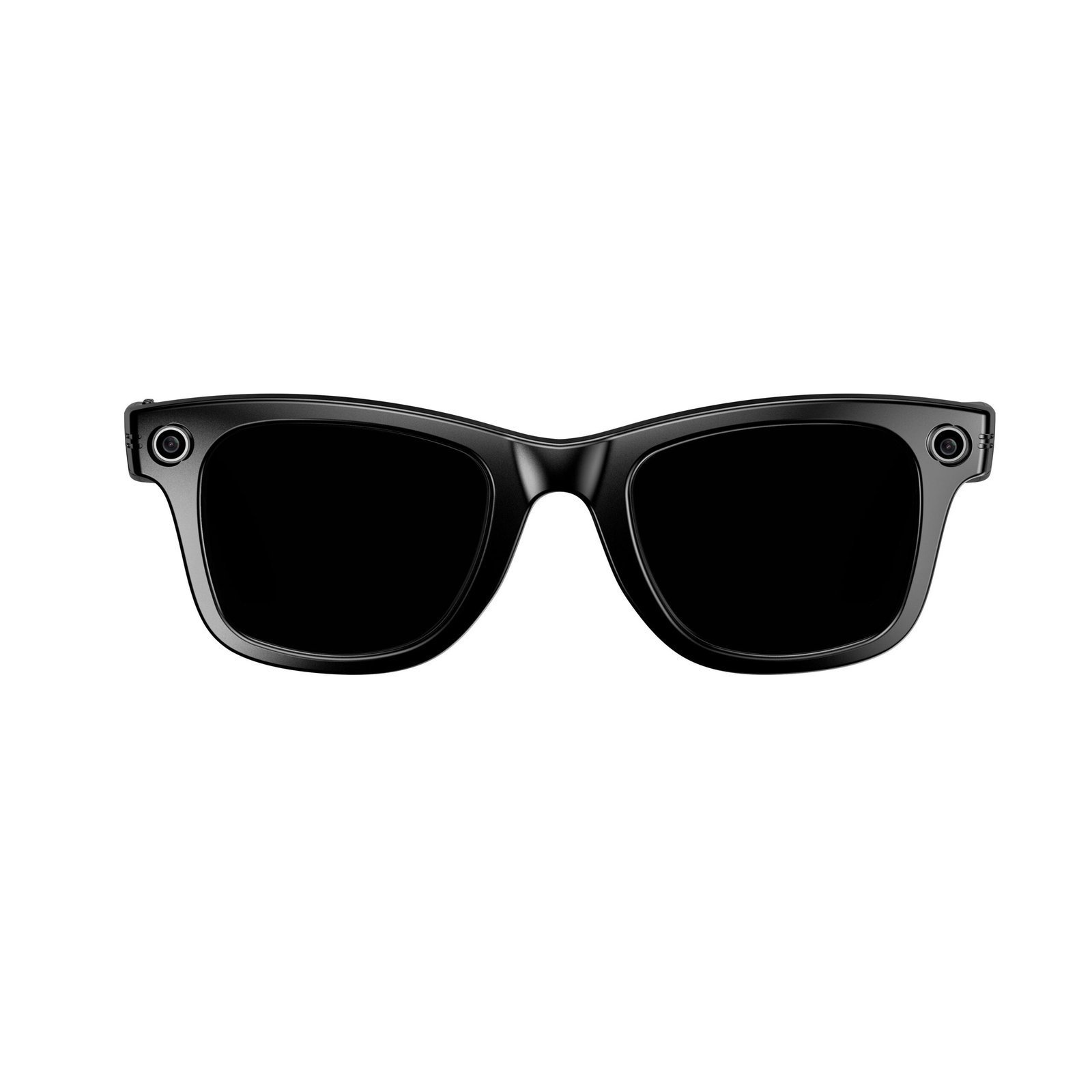
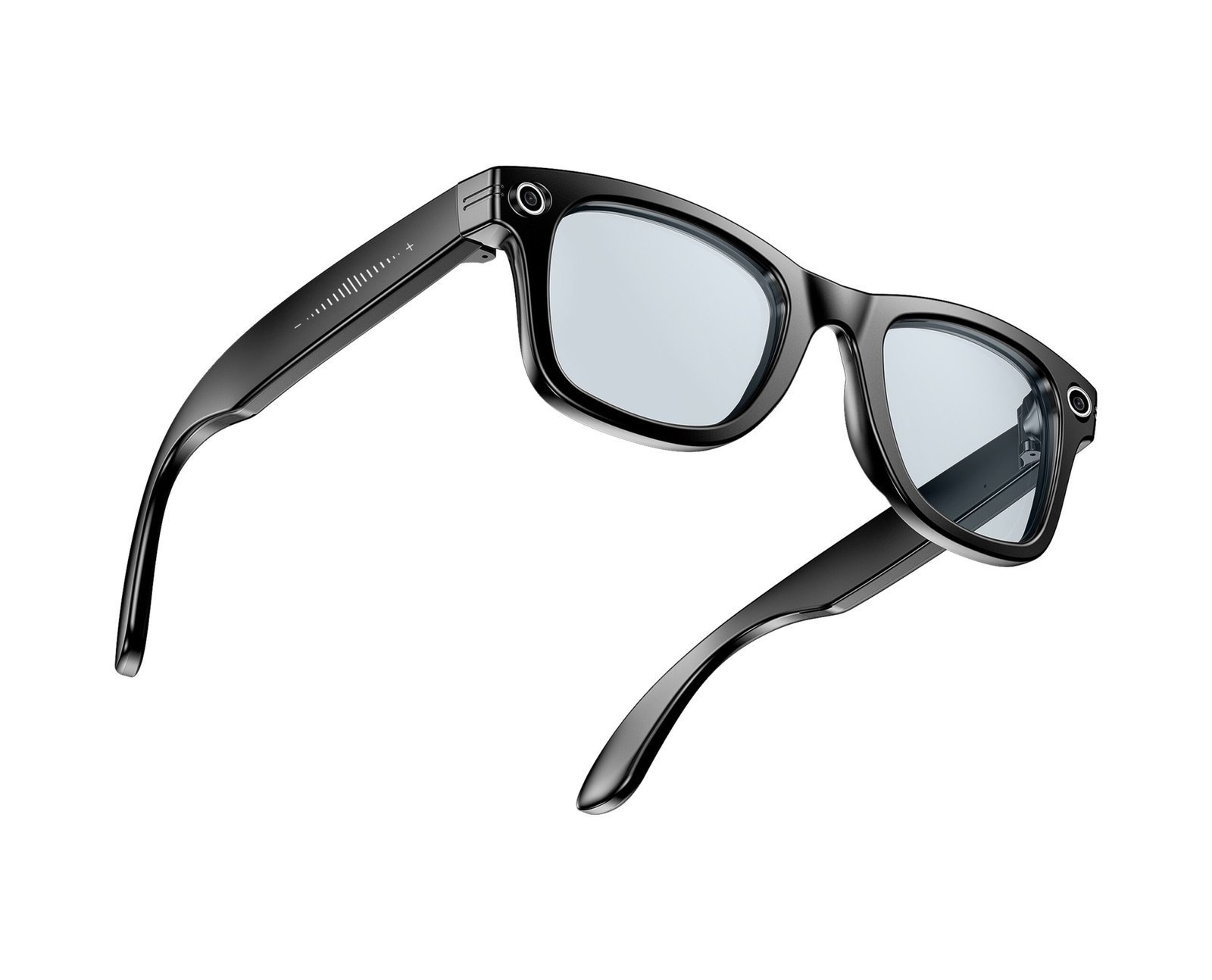
Pentru previzualizarea camerei în timp real, transferul de fișiere pe telefon fără cablu și asistență vocală AI.
Aplicație dedicată gratuită pentru iOS și Android. Permite descărcarea ultrarapidă prin Wi-Fi Direct a filmărilor 1080P și fotografiilor pe telefon, vizualizare în direct a camerei și comenzi inteligente ChatGPT.
1 apăsare scurtă pe butonul de pe ramă = Declanșare fotografie HD
Apăsare 2 secunde = Start/Stop înregistrare video 1080P cu stabilizare EIS
Glisare înainte/înapoi pe braț = Reglare volum sunet (Vol +/-)
Deschide fila Gallery în HeyCyan = Descărcare directă în telefon fără cablu
Rostește „Hey Cyan” sau „Hey Glasses” pentru Q&A și identificare obiecte
Pune automat pauză la redare când ochelarii sunt dați jos

Caută și adaugă în listă produsele pentru care dorești o ofertă.
Completează informațiile de contact pentru a primi oferta personalizată.



Leave a comment